Step 1
Purchase an OtherPhone
Purchase an OtherPhone with the safety software pre-installed.
Your first three months of premium protection are free.
OtherPhone: .
Step 2
Onboarding and getting connected
Once the phone is switched on, you’ll be guided through the onboarding process.
- Set up your parent account
- Configure your settings to protect your child
- Optional - Connect a Google account to Google Play Store

Step 3
Download apps & set custom guardrails
Download the apps your child needs from the Google Play Store.
Set custom app schedules for school days, evenings, and weekends.
- Customise safety features to fit your family
- Tweak content filters across graphic, explicit and bullying content
- Turn on location tracking
- Switch to a distraction-free “brick phone” layout
Step 4
Check in as they grow
Start your child’s journey with their OtherPhone, and empower them to explore, create, connect and discover. If they encounter inappropriate content, it’s blocked or flagged the moment it appears.
Check in at any time through the Parent App.
As your child grows, you can revisit boundaries together.

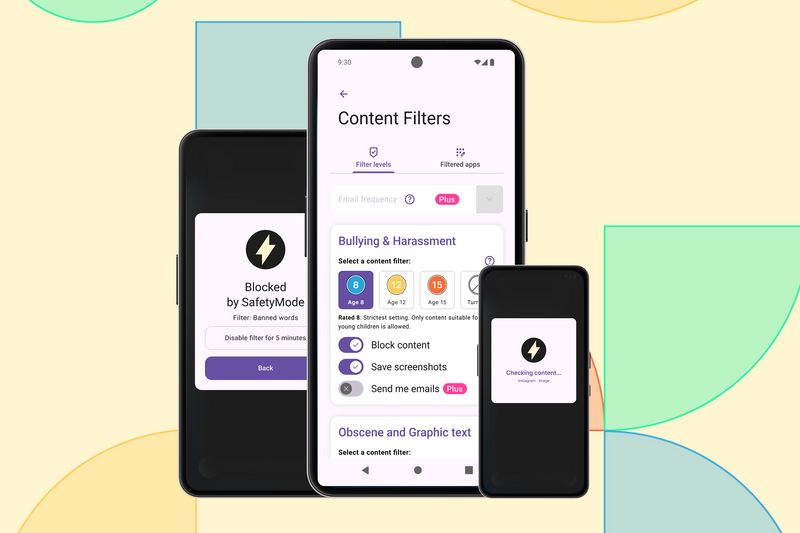
What Is the Difference Between Live Content Blocking and Web Filtering, and Which Is Safer for Children?
Read article
SafetyMode vs Kids360: Why Blocking Apps Isn't the Same as Keeping Kids Safe Inside Them
Read article